

 Developer platform
 Plugins and MCP
Prerequisites
- A Supermemory API key (get one here)
- A viaSocket account
Step-by-step tutorial
1
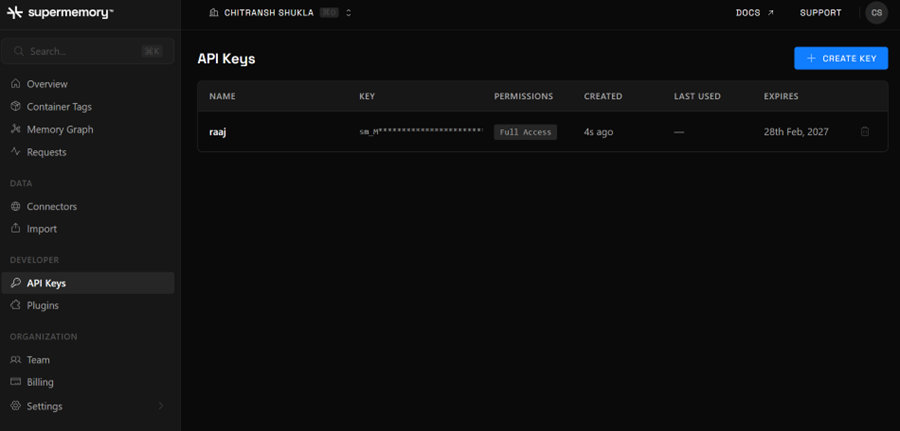
Generate Supermemory API token
- Log in to your Supermemory account.
- Go to Settings → API Key.
- Copy your Personal API key.
- Keep the key secure — treat it like a password.
2
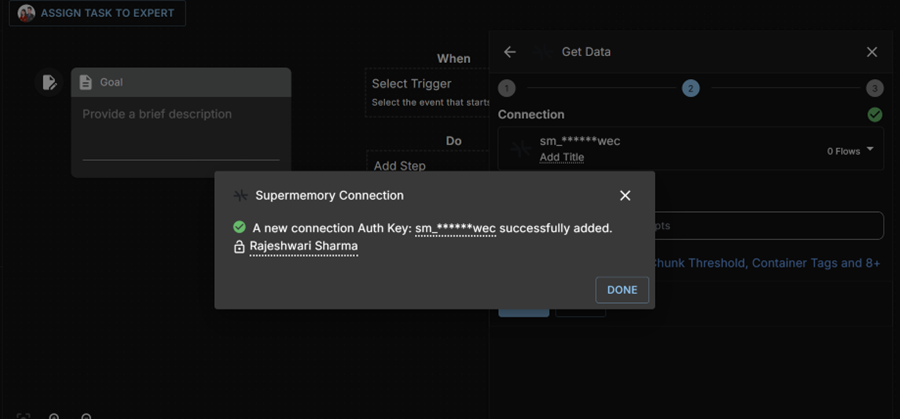
Create a new flow in viaSocket
- Click Create New Flow in your viaSocket dashboard.
- In the Trigger section, search for and select Supermemory.
- Choose a trigger — Search Memory or Search User Profile.
3
Connect your Supermemory account
- Click Connect to Supermemory.
- Paste your Supermemory API key.
- Click Save to store the connection.
- Confirm the connection is successfully added before proceeding.
4
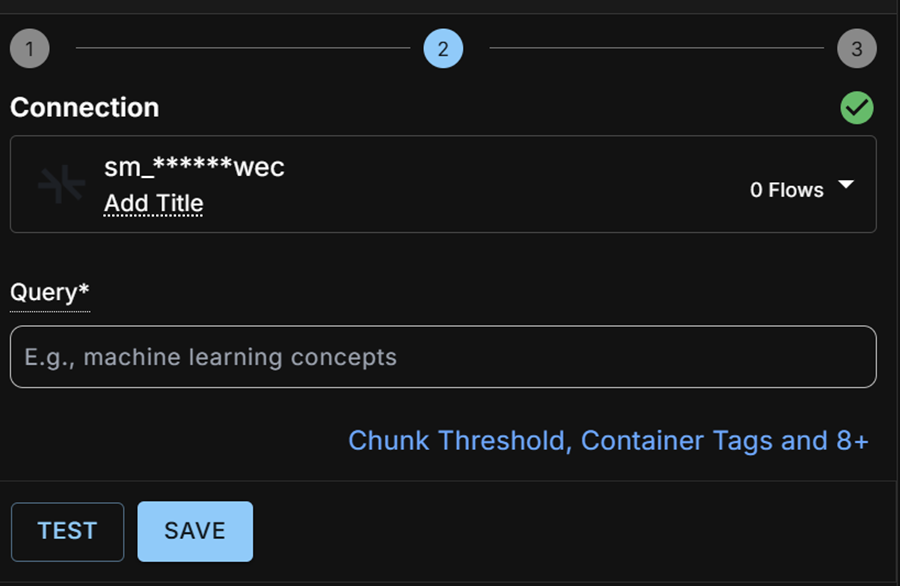
Configure the trigger
- Provide a Query — either a static value or a dynamic input from a previous step.
- Click TEST to run a sample and verify the output.
- Save the trigger once the test returns expected data.
5
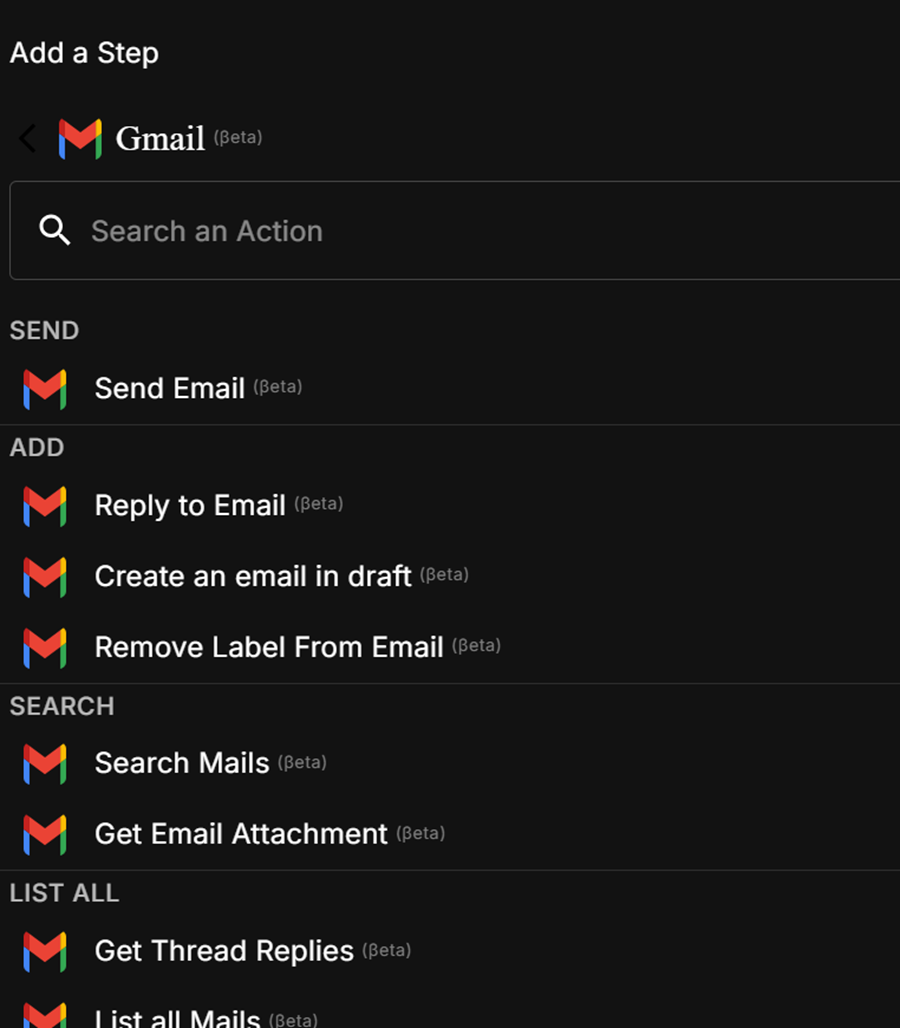
Add an action (example: Gmail send email)
- Click Add Step.
- Select Gmail → Send Email.
- Choose an existing Gmail connection or create a new one.
- Map the required fields:
- To — recipient email address
- Subject — email subject line
- Message Body — use the trigger’s
bodyobject as dynamic input
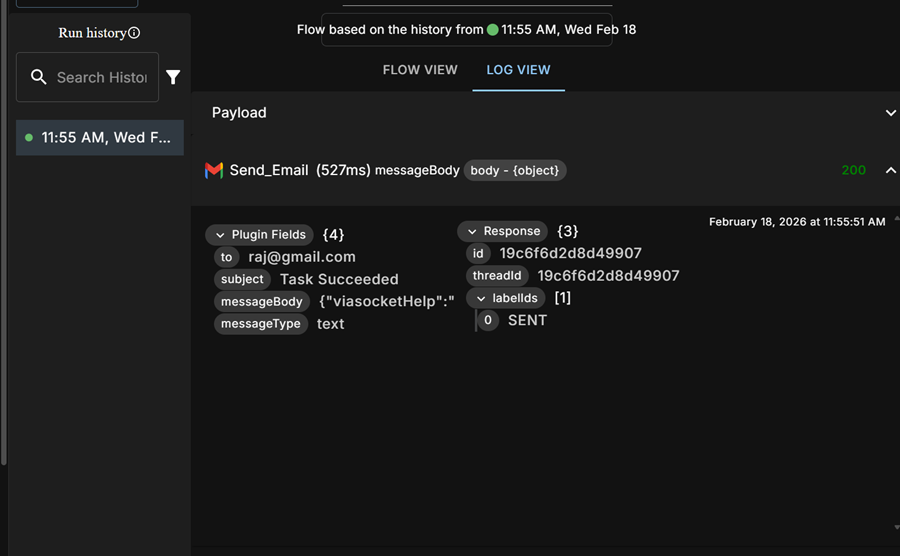
- Click Test to send a test email.
- Confirm a 200 response status before saving.
6
Go live & monitor
- Click GO LIVE to activate your flow.
- Confirm the activation prompt.
- Use Flow View to inspect the flow structure and Log View to monitor executions in real time.
- If needed, re-run any execution from Run History.
Make sure your Supermemory API key has the correct permissions before
connecting. If the TEST step returns no data, double-check the query and
ensure your Supermemory account has indexed content.