> ## Documentation Index
> Fetch the complete documentation index at: https://supermemory.ai/docs/llms.txt
> Use this file to discover all available pages before exploring further.
# Setup and Onboarding
> Creating a team workspace and installing it into Slack
Setting up Company Brain is two admin steps: create the workspace, then install it into Slack. Everyone else joins on their own after that — see [Greeting new teammates](/docs/company-brain/use-cases/greeting).
## 1. Create your team workspace
Creating a workspace sets up your shared **Team Brain** and your private **My Brain** in one step.
Head to [app.supermemory.ai](https://app.supermemory.ai) and create an account.
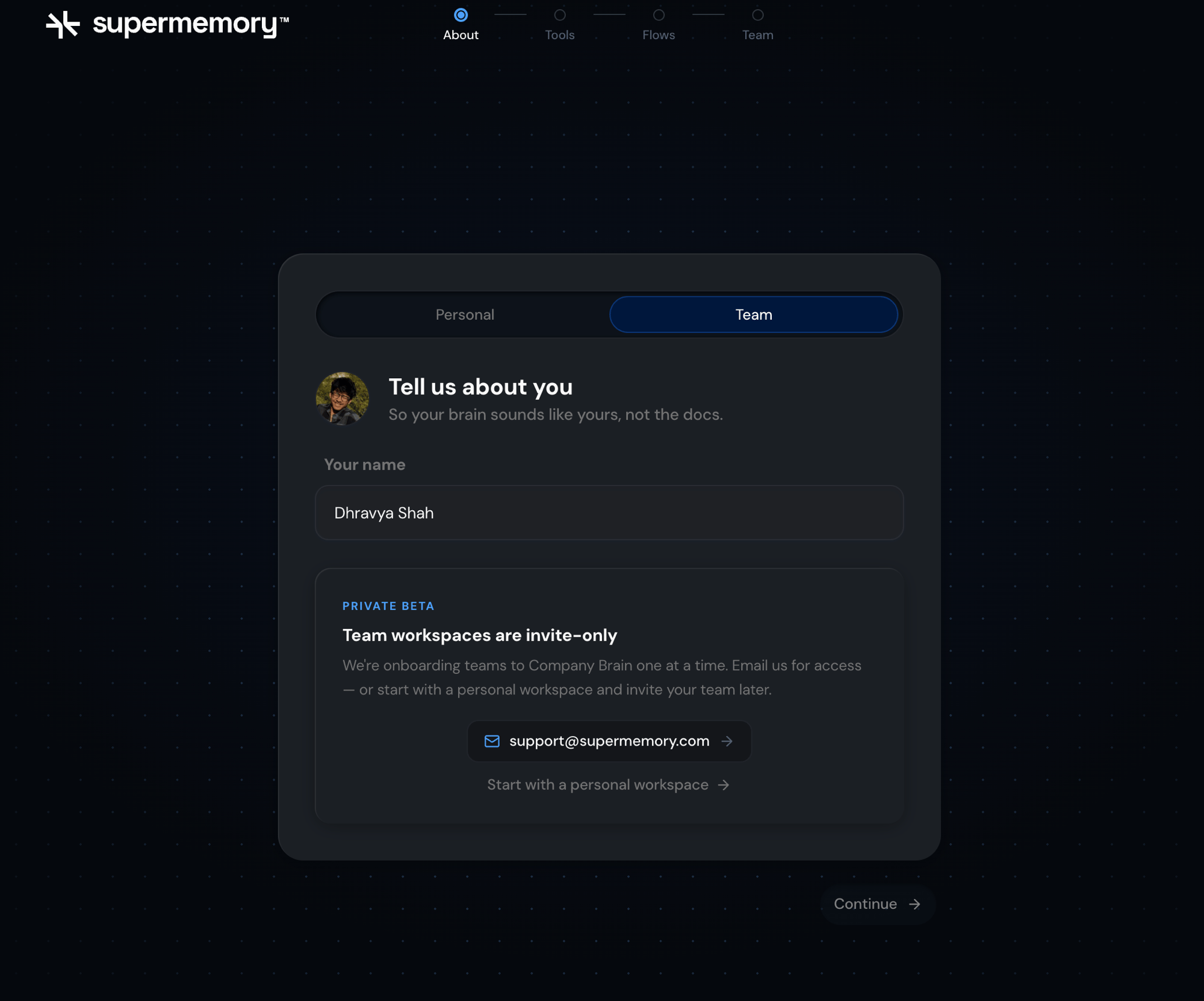
On the **About** step, switch from **Personal** to **Team**.
Team workspaces are invite-only during the private beta. Not invited yet? Email **[support@supermemory.com](mailto:support@supermemory.com)**, or start Personal and invite your team once you're in.
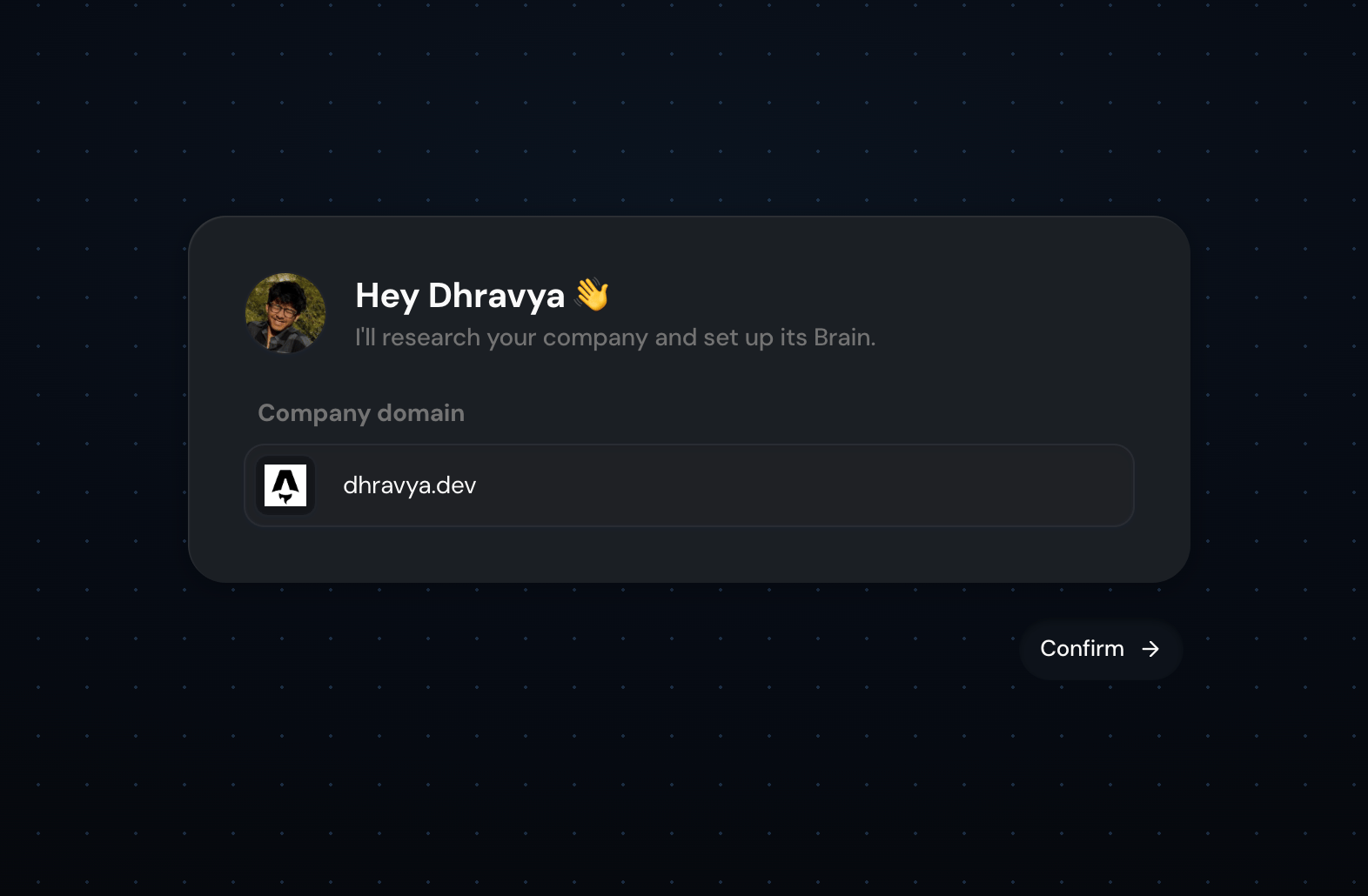
 Enter your domain (for example `acme.com`) and confirm. Supermemory researches the company from there and seeds a starting profile, before any source finishes syncing.
 All three run in parallel with research, and none of them block it:
* **Add to Slack** — kicks off the install flow below.
* **Connect apps** — Linear, Granola, Sentry, and more.
* **Invite teammates** — now, not later. No per-seat pricing, so invite everyone in your Slack.
All three run in parallel with research, and none of them block it:
* **Add to Slack** — kicks off the install flow below.
* **Connect apps** — Linear, Granola, Sentry, and more.
* **Invite teammates** — now, not later. No per-seat pricing, so invite everyone in your Slack.
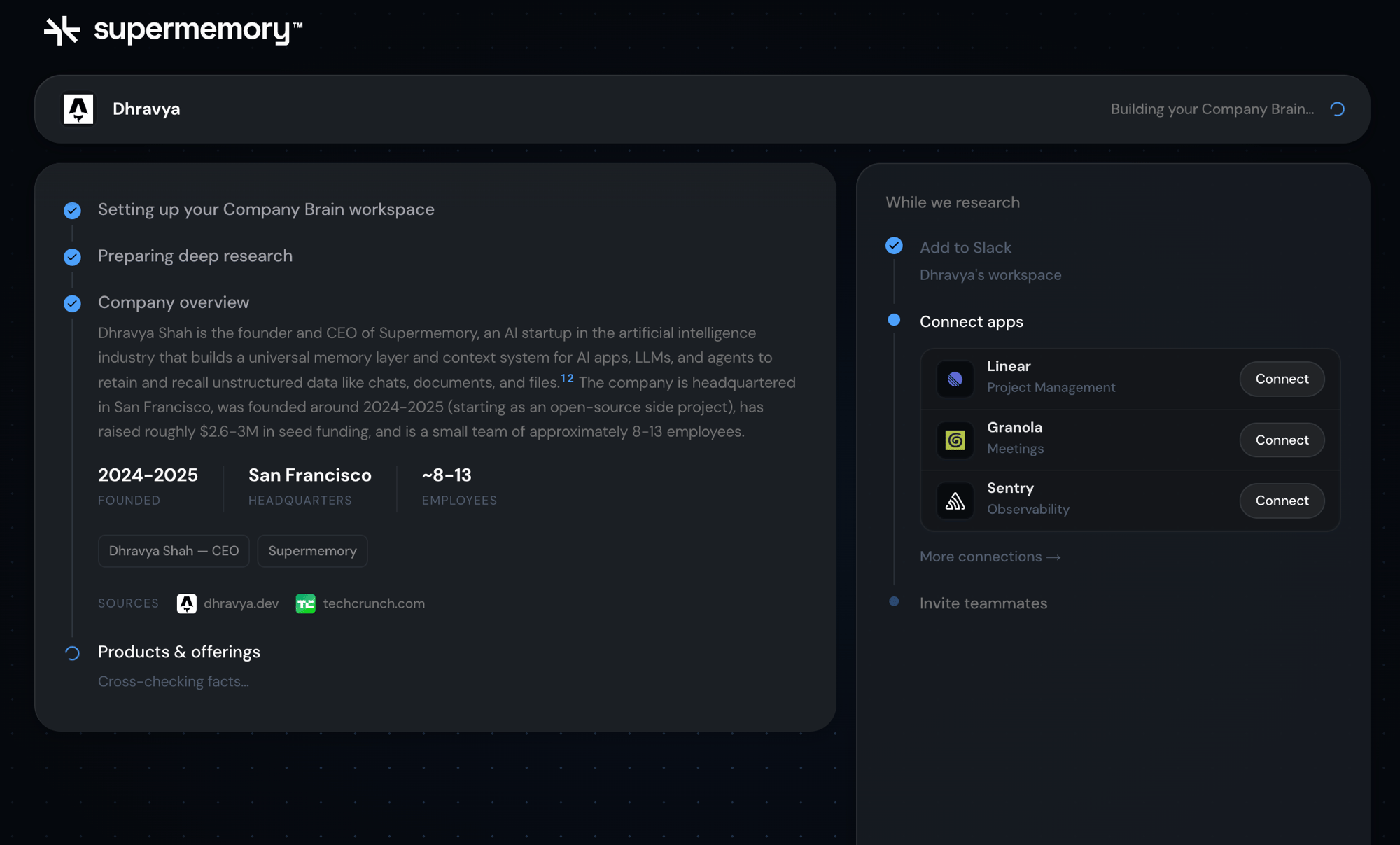 Supermemory's already learned a real amount about your company by the time research finishes. Watch Slack for a DM from it walking you through what it can do.
 **Try it:** ask `What does {your company} do?` — you should get a real answer from the seeded profile.
## 2. Install into Slack (admin)
Go to [app.slack.com](https://app.slack.com) to create one first — Company Brain installs into an existing workspace, it doesn't create one for you.
**Try it:** ask `What does {your company} do?` — you should get a real answer from the seeded profile.
## 2. Install into Slack (admin)
Go to [app.slack.com](https://app.slack.com) to create one first — Company Brain installs into an existing workspace, it doesn't create one for you.
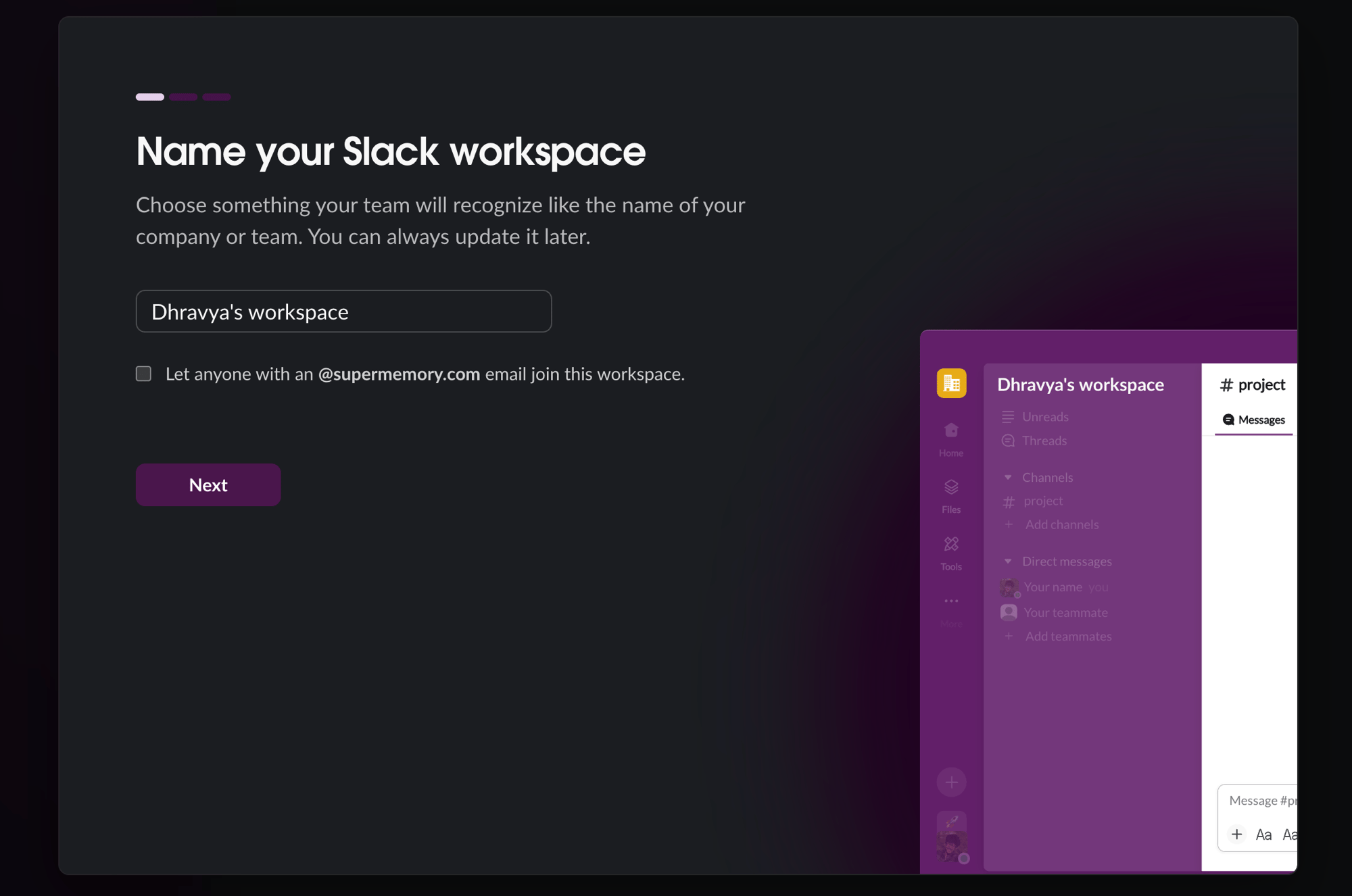 Click **Install to Slack**. Not an admin? This triggers Slack's own request-to-install flow instead.
The web app hands off immediately — "we've DM'd you in Slack."
The agent creates `#company-brain`, posts an intro there, and announces itself once in `#general`.
You approve each channel with a tap — it never joins one silently.
Invite people with a picker, a workspace-wide toggle, or email.
What member join looks like from a new hire's side.
What each person can see once they're in.
Click **Install to Slack**. Not an admin? This triggers Slack's own request-to-install flow instead.
The web app hands off immediately — "we've DM'd you in Slack."
The agent creates `#company-brain`, posts an intro there, and announces itself once in `#general`.
You approve each channel with a tap — it never joins one silently.
Invite people with a picker, a workspace-wide toggle, or email.
What member join looks like from a new hire's side.
What each person can see once they're in.